
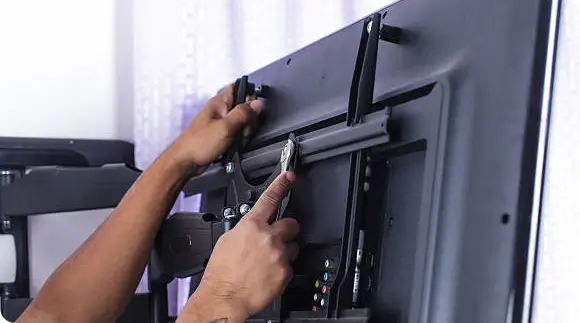
Why Is There No Signal on My TV?
Quick Fix: Grab your TV remote (not the cable box remote), press the ‘Input’ or ‘Source’ button, and cycle through the options until your picture returns.
It happens to all of us. You finally crash on the couch after a long day, grab the remote, and hit the power button. You’re ready to catch up on your shows or watch the game.
Instead of your regular channels, you get a black screen. A little grey box bounces around the display, telling you there is “No Signal.”
Talk about frustrating. The alert itself doesn’t give you any real clues.
It leaves you guessing. Is the television completely dead? Did the cable company shut off your service? Did a wire fall out of the back?
Most people panic. They immediately assume their expensive flatscreen is ruined.
But here is the good news. The screen is probably fine. In our experience as technicians, this is almost always a 60-second fix that you haven’t tried yet.
Modern living room setups are complicated. We don’t just plug a single cable into the wall anymore. We have soundbars, streaming sticks, gaming consoles, and set-top boxes all fighting for space.
Because of all this extra gear, getting the video feed to show up on the screen is a lot trickier. It’s incredibly easy for a setting to get bumped or a cord to slip.
If you find yourself staring at a blank screen, wondering why there is no signal on your TV, we are going to help you figure out exactly what went wrong.
We will walk through the exact steps field technicians use to fix connection problems right in your living room.
What Does the “No Signal” Message Actually Mean?
First, we need to clear up a big misconception. We have to differentiate between a broken display and a simple communication glitch.
If your screen were physically broken, you would see spiderweb cracks. You might see dead pixels or a display that won’t even light up.
“No Signal” means your TV is powered on, but the specific input channel it is currently set to is not receiving any visual data.
The television itself works perfectly. The internal software is running fine.
Your TV is essentially acting like a monitor. It’s waiting for an outside device to hand it a video feed. It is like answering a ringing phone only to hear dead silence on the other end. The phone isn’t broken; the caller just isn’t speaking.
Your screen is just waiting for the cable box or Roku to start talking.
Step 1: The 60-Second Quick Checks (Do These First)
Before you start pulling equipment off the TV stand, do the easy stuff.
We can’t tell you how many times we’ve driven 45 minutes for a service call only to solve the problem by pressing a single button.
If your TV says no signal, do these quick steps first:
- Turn off the television and unplug it straight from the wall.
- Disconnect and inspect all the HDMI cables behind the screen.
- Reconnect those cables, pushing them firmly into the ports.
- Plug the television back into the outlet and turn it on.
- Use your remote to check every single input source slowly.
Verify the Input/Source Settings
This is the number one culprit. Hands down.
The physical port on the back of the TV has to match the software menu exactly. If your Apple TV is physically plugged into HDMI 2, the TV menu must be set to HDMI 2.
It is so easy to mess this up. Someone sits on the remote. The dog steps on it. A kid mashes the buttons. Next thing you know, the TV is looking at HDMI 3, which has nothing plugged into it.
Find your original television remote. Do not use the remote your cable provider gave you. Find the remote made by Samsung, LG, or whoever manufactured your screen.
Look for a button labeled “Input” or “Source.”
Press it and slowly select each option. Wait about five full seconds on each channel. Sometimes it takes a moment for the video feed to sync up.
The Power Cycle Method
A lot of people think hitting the power button on the remote resets the TV.
It doesn’t. Modern screens never actually turn off. They go to sleep. They enter a low-power standby mode so they can turn back on faster when you want to watch something.
To actually reset the system, you need to do a full power cycle.
Unplug the TV from the wall outlet. Leave it sitting there completely unplugged for a full 60 seconds.
If your TV has a physical power button on the bottom of the plastic frame, hold it down for 10 seconds while it is unplugged. This drains any leftover electricity out of the internal capacitors.
This clears out the temporary memory. It forces the TV to completely reboot and shake off any random software glitches holding up your video feed.
Check for Loose Cables
HDMI cables are thick and heavy. Over time, gravity pulls on them.
If you angled your screen to see it from the kitchen, you might have accidentally yanked a cord loose.
Check both ends. Push the wire firmly into the back of the TV. You should feel it securely. Then go to your cable box and push the other end in tightly. A loose pin connection will stop a video feed instantly.
Identifying the Root Cause of Signal Loss
If the quick fixes didn’t bring your picture back, the issue is a bit deeper. We need to look at the external hardware.
Faulty or Damaged HDMI Cables
Cords go bad. It happens all the time.
If your TV is pushed flush against a wall, the cord gets mashed. This bends the delicate metal pins inside the connector.
HDMI cables use a security protocol called HDCP. It’s basically a digital handshake between your TV and your streaming device to prevent piracy. If the pins inside the cord are bent, that handshake fails. The screen goes black.
If your picture drops out randomly while watching movies, the cord is probably dying.
You usually have to replace the wire entirely to fix HDMI handshake issues permanently. Don’t buy the cheapest cord you can find; get one rated for 4K video.
Service Outages (Cable & Satellite)
Sometimes, no signal on TV actually means your provider is down.
The problem might not be inside your house at all.
Pull up your internet provider’s app on your phone. See if they are reporting a neighborhood outage.
If you use a dish on your roof, heavy storms will knock out your feed. Thick rain clouds block the signal coming from space. If a bad storm just rolled through, you should read up on weather disruptions on satellite connections. Usually, you have to wait for the clouds to clear.
Motherboard or HDMI Port Failure
HDMI ports get fried. A small power surge can easily short out a single port on your television’s motherboard.
You need to test this. Unplug your Roku or Fire TV Stick from HDMI 1. Plug it into HDMI 2 instead.
Grab the remote and change the input to HDMI 2. If your picture suddenly shows up perfectly, then HDMI 1 is dead. You don’t necessarily need a new TV; use the remaining good ports.
Outdated TV Firmware
Smart TVs are basically giant smartphones. They need software updates.
Brands like Sony and Vizio run these updates quietly in the background while you sleep.
Sometimes, an update gets hung up. When it does, the TV software temporarily drops the connection to the HDMI ports.
Connect the TV to your home Wi-Fi. Go into the main settings menu and look for “System Update.” If there’s an update pending, install it. The TV will restart and often reconnect to your devices perfectly.
Device-Specific Troubleshooting
Different gadgets have their own unique quirks. Here is what we check when dealing with specific types of equipment.
Cable & Set-Top Boxes
Cable boxes are notorious for overheating. People cram them into tight wooden cabinets with zero airflow.
When they overheat, they freeze. They stop sending videos.
Unplug the power cord from the back of the cable box. Let it sit for two minutes to cool down. Plug it back in.
While you are back there, check the coaxial cable (the thick wire with the metal screw-on tip). Make sure the copper wire in the center is totally straight. Screw it onto the back of the box as tightly as you possibly can with your fingers.
Streaming Sticks (Roku, Fire TV, Apple TV)
We see this specific issue constantly.
People buy a Roku or Fire TV Stick and use a USB cable to plug it directly into the back of the TV for power.
Here’s the problem: TV USB ports are built for small things like thumb drives. They only put out about 500mA of power. A streaming stick usually needs a full 1 Amp to run smoothly.
Because the stick is starving for electricity, it constantly crashes and restarts. That leaves your TV saying no signal.
Always plug your streaming stick into a real wall outlet using a proper power adapter block.
Digital Antennas (OTA)
If you use an over-the-air antenna to get local news, placement is everything.
These antennas need a clear line of sight to the broadcast towers. If you bumped the antenna while dusting, you might have aimed it away from the signal.
Move the antenna near a window. Keep it away from thick metal objects like refrigerators.
If you live way out in the country, setting up your broadcast receiver is tricky. You might need to look at a proper satellite TV installation guide to make sure your gear is mounted high enough to catch a signal over the tree line. After moving the antenna, always go into the TV menu and run a fresh channel scan.
Why Trust Smart Sat Connect With Your TV Setup?
Troubleshooting home theater gear can feel completely overwhelming. We get it.
We’ve spent years working hands-on in the telecommunications field. Our team deals with complex satellite setups and stubborn home theater glitches every single day.
We don’t just sit in an office writing generic tips. We actually run service calls. The troubleshooting steps in this article are the same methods our field technicians use when they walk into a customer’s living room.
Our mission is to empower you. We want to save you the hassle of waiting in a four-hour window for a technician to show up. We want to save you from paying an expensive $100 service fee for a problem you could have fixed in 60 seconds.
We believe in honest, practical advice. If a TV is truly dead, we’ll tell you. But most of the time, we can help you get things running again on your own.
When Is It Time to Call a Professional?
Most of the time, the DIY approach works. But sometimes hardware actually kicks the bucket.
If the standby light on your television won’t even turn red, the internal power supply is blown.
If you hear a loud pop or smell burning plastic, a capacitor burst inside the casing. Unplug it immediately.
If you’ve tried three different brand-new HDMI cords on every single port and the screen stays black, the main motherboard has failed.
Do not try to open up a modern television yourself. The power boards hold large amounts of electricity even when unplugged. It is incredibly dangerous.
At this point, you need to reach out to local TV repair services to diagnose the internal damage safely. A local tech can tell you if a motherboard swap makes financial sense or if it’s time to buy a new display.
Frequently Asked Questions (FAQ)
Q. Why does my TV say no signal when everything is plugged in?
A. This almost always means the television is looking at the wrong input source. If your Xbox is plugged into HDMI 2, but the TV menu is set to HDMI 1, it will show a black screen. It can also mean the device itself is turned off or frozen.
Q. Can a faulty HDMI cable cause signal problems?
A. Yes, absolutely. An HDMI cord handles a massive amount of visual data and security protocols. If the pins bend or the internal wires fray, the signal breaks completely. Swapping out a bad cord fixes the issue instantly.
Q. Why does my TV show no signal after a power outage?
A. Power surges scramble internal memory. A quick surge can easily mess up the digital handshake between the screen and your cable box. Doing a hard reset by unplugging everything for a full minute usually forces the devices to talk to each other again.
Q. Does resetting a TV fix no signal problems?
A. Yes. A hard reset clears the temporary cache. It forces the TV’s software to completely reboot and establish brand-new connections with everything plugged into the back. It’s the most reliable fix for weird software glitches.
Q. Why does my smart TV keep losing the signal randomly?
A. If the picture drops out randomly while watching, it usually points to a dying HDMI cable, a failing HDMI port on the TV, or a streaming device that is overheating. Swap the cord and the port first to isolate the problem.
Conclusion
Seeing a “No Signal” message does not mean your TV is ready for the junkyard.
Most of the time, it’s just a simple miscommunication between your gear. Grab your factory remote, check your input settings, and make sure your cables are pushed in tight.
Don’t be afraid to pull the plug from the wall to force a hard reboot. Those simple adjustments fix the problem the vast majority of the time.
If you’ve tried everything on this list and your satellite receiver or set-top box still won’t connect, don’t stress out. Reach out to the Smart Sat Connect support team today. We’ll help you get your living room back in working order.

